
How to Set Up Your CBPC Account Step by Step
I get asked about this quite a lot, usually by people who are a bit nervous about the techy side. So here’s how setting up your CBPC account works, in plain English, including the bits that tripped me up.
Put the kettle on. It won’t take long.
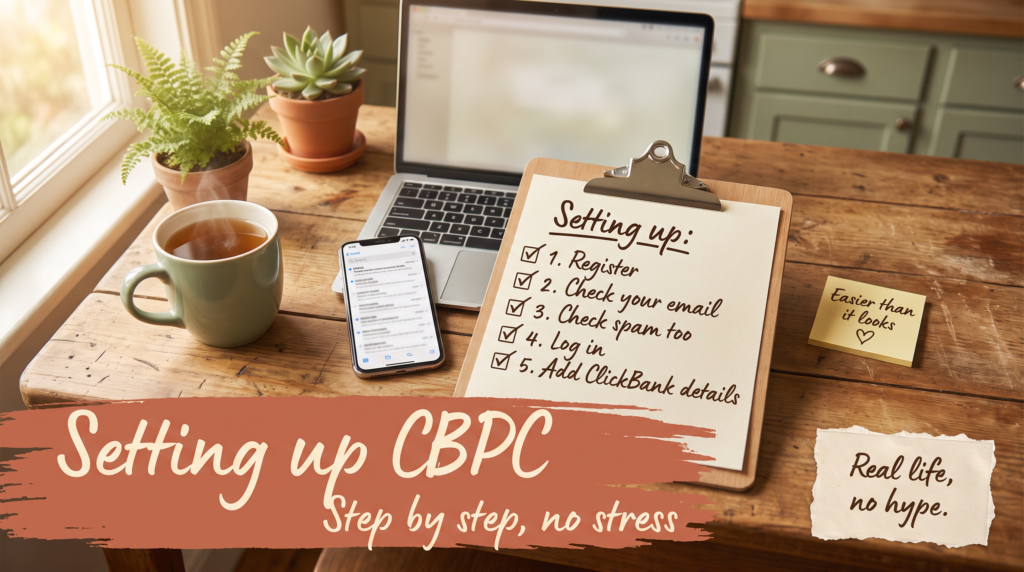
Step 1: Register
You sign up with your name and email address. That’s it at this stage. No card details.
My tip: use an email address you actually check. It know it sounds obvious, but I’ve seen people use an old one they never look at and then wonder why nothing arrived, then when they go looking for it they find that they have thousands of unopened emails… so use on you actually will look at.
Step 2: Check your email
I know that this sounds daft, but seriously check your email. Your login details are sent by email on the day you register. It’s not always instant, so give it a little while.
Step 3: Check your spam folder too
This is the one that caught me out. If you can’t see the email in your inbox, have a look in spam, junk, or the “promotions” tab if you use Gmail. If you find it there, mark it as “not spam” so future emails land properly.
Mine got sent to the promotions tab, now I admit that I never actually check this, so after checking the inbox and the junk folder, I was getting annoyed when I noticed that I had quite a lot of emails in the promotions tab, so after deleting all the rubbish emails I found the one from CBPC and then I moved it to my inbox so that all future emails would actually be seen, so a little tip there, move it to inbox so it knows where to put emails next time…..
Step 4: Log in
Use the details from the email to log in. You’ll land in the members area. Have a look round, but don’t feel you need to understand everything straight away. You’ll see there’s a clear place to start. Once your inside you will see a video to welcome you, and under that 3 boxes, simply follow the three steps.
Step 5: Add your ClickBank details
This is the important bit. Inside your account, you need to add your ClickBank details. This is what links everything to you, so any affiliate links are tracked properly.
If you don’t have a ClickBank account yet, you’ll need to set one up. It’s free to open. Keep your ClickBank nickname handy (that’s your affiliate ID), as that’s the bit you’ll need.
What tripped me up: I was halfway through the training before I realised how much this step mattered. Do it first. Future you will thank you, yeah, I hadn’t originally set one up so was switching between tabs trying to figure it out, so write it down makes it so much easier….
Step 6: Start at step one of the training
Once you’re set up, go to the start of the training and work through it in order. Resist the urge to jump ahead. (I say this as a professional jumper-ahead.)
A quick setup checklist
- Registered with an email I actually check
- Found my login email (and checked spam)
- Logged in and had a look round
- Opened a ClickBank account if I didn’t have one
- Added my ClickBank details inside my CBPC account
- Started at step one
How long does it take?
The setup itself took me well under an hour, spread across a couple of my 20-minute pockets. The bit that took longest was hunting for the login email, which is why I keep banging on about the spam folder. So it will probably me much quicker for you even if you are a beginner with no tech skills.
If you get stuck
Don’t panic and don’t give up at the first hurdle. Re-read the email, double-check you’ve typed things correctly, and take a break if you’re getting frustrated. Most setup problems are small things, like a typo or an email in the wrong folder.
Ready to set yours up? It’s free to join.